
MongoDB Connection Failed? 10 Causes and Fixes
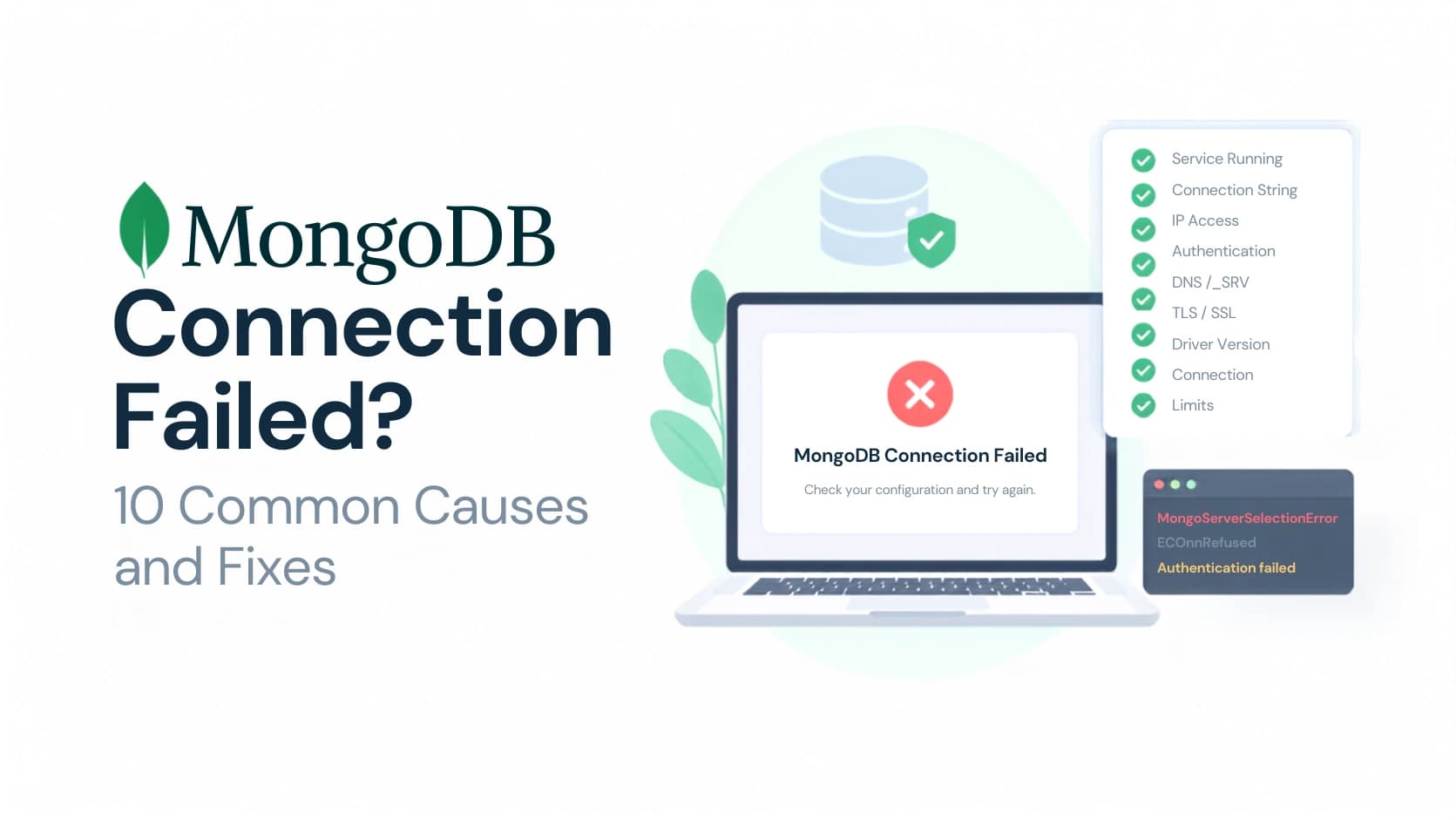
Your application works perfectly.
The code looks fine.
Then you change one environment variable, restart the project, and suddenly you see:
MongoServerSelectionError
or perhaps:
ECONNREFUSED
or the dreaded:
Authentication failed
If you've ever searched “MongoDB Connection Failed? 10 Common Causes and Fixes,” you're probably looking for one thing: a clear way to find the actual cause without randomly changing configuration settings.
The good news is that MongoDB connection failures usually leave useful clues. The error message, connection string, network configuration, and deployment type can tell you where to look.
Let's break down the most common causes and, more importantly, how to troubleshoot them systematically.
Why MongoDB Connections Fail
A MongoDB connection is not simply a matter of entering a username and password.
Your application must reach the correct server, resolve its hostname, communicate through the required port, complete any TLS negotiation, authenticate successfully, and select an appropriate MongoDB server.
That means a failure at almost any stage can look like a generic “connection failed” message.
MongoDB's own troubleshooting documentation groups common server-selection problems around network connectivity, IP restrictions, DNS SRV resolution, TLS configuration, and deployment availability.
The key is to troubleshoot the connection in layers, starting with the simplest possibilities.
MongoDB Connection Failed? 10 Common Causes and Fixes
1. Your MongoDB Server Is Not Running
If you're working with a local MongoDB installation, first check whether the mongod process is actually running.
A connection attempt to a stopped server cannot succeed, even if every other setting is correct.
Check the MongoDB service, verify that it is listening on the expected port, and confirm that your application is connecting to the same host and port. MongoDB commonly uses port 27017, although deployments can be configured differently.
2. The Connection String Is Incorrect
A surprisingly large number of connection problems start with a malformed URI.
Check the hostname, port, database name, username, password, and connection options carefully. MongoDB supports both standard mongodb:// and SRV-based mongodb+srv:// connection strings.
There is another easy-to-miss problem: special characters in usernames or passwords.
Characters such as @, :, /, ?, #, [, and ] may need percent encoding when they appear inside a connection string.
3. Your IP Address Is Not Allowed
Using MongoDB Atlas?
Check the project's Network Access settings.
Atlas restricts incoming connections according to its IP access list. If the public IP address of your laptop, server, or deployment environment is not allowed, your application may fail before authentication even becomes relevant.
This is especially common when your internet connection changes and your public IP address is different from the one you previously allowed.
4. Your Username or Password Is Wrong
An authentication error usually points toward credentials or authentication configuration.
Verify the database username, password, authentication mechanism, and authentication database. For Atlas connections, MongoDB notes that the authentication database is commonly admin, depending on how the user was configured.
Don't confuse your MongoDB Atlas account password with the password assigned to your database user. They serve different purposes.
5. DNS Cannot Resolve the MongoDB Host
Sometimes your application never reaches MongoDB because it cannot resolve the hostname.
This is particularly relevant with mongodb+srv:// connections, which depend on DNS SRV records to discover cluster hosts.
Errors such as ENOTFOUND or querySrv ECONNREFUSED can point toward DNS or SRV resolution problems. MongoDB recommends checking SRV records and, when necessary, testing DNS configuration or using a standard non-SRV connection string.
For example, you can test SRV resolution with:
nslookup -type=SRV mongodb.tcp.<cluster-host>
The exact command depends on your operating system and environment.
6. A Firewall Is Blocking the Connection
Your MongoDB server may be perfectly healthy while your network prevents your application from reaching it.
Check local firewalls, cloud security groups, network ACLs, VPNs, proxies, and outbound firewall rules.
For standard MongoDB deployments, TCP port 27017 is commonly used. However, don't blindly open ports—verify which port your deployment actually uses. MongoDB specifically warns against opening firewall ports without confirming the correct deployment configuration.
7. MongoDB Atlas Cluster Is Paused or Unavailable
If you're using Atlas, check the cluster status before changing your application code.
A paused, deleted, unavailable, or otherwise inactive deployment can produce connection problems that look like application errors.
MongoDB recommends confirming that an Atlas deployment is active when troubleshooting server-selection timeouts.
Always check the infrastructure before assuming the bug is inside your code.
8. TLS or SSL Configuration Is Wrong
Secure MongoDB deployments may require TLS.
If the error mentions certificates, SSL, TLS handshakes, or certificate validation, inspect the client and server security configuration.
Outdated root certificates, unsupported TLS versions, incorrect certificate hostnames, or incomplete certificate chains can prevent a successful connection. MongoDB recommends verifying TLS support and certificate configuration when these errors appear.
9. Your MongoDB Driver Is Outdated
Your application may have valid credentials and a correct network configuration but still fail because the driver does not properly support the connection method or MongoDB configuration you're using.
This can happen with older drivers and newer connection features, particularly when working with SRV connection strings.
Check the driver version and compare it with the MongoDB version and features you're using. MongoDB's Atlas documentation specifically identifies outdated drivers as a possible cause of connection-string compatibility problems.
10. You've Reached the Connection Limit
Not every connection error means the server is unreachable.
Your application may actually be creating too many connections.
MongoDB documents connection storms and connection-limit problems as situations where applications rapidly create connections or maintain more active connections than the deployment can handle. Connection-pool configuration and application architecture can contribute to this problem.
If the error mentions too many connections, inspect your connection pool settings and make sure your application isn't creating a new MongoDB client for every request.
A long-running application should generally manage its database client deliberately rather than repeatedly opening unnecessary connections.
How to Troubleshoot MongoDB Errors Efficiently
When debugging MongoDB, don't change five settings at once.
Start with the error message.
If you see ECONNREFUSED, investigate whether the target host and port are reachable and whether MongoDB is listening. If you see Authentication failed, focus on credentials and authentication configuration. If you see ENOTFOUND or an SRV-related error, investigate DNS.
For a server-selection timeout, check the deployment status, network connectivity, IP access restrictions, DNS, and TLS configuration. MongoDB recommends collecting the complete error message, driver version, server version, DNS test results, network tests, and relevant logs if the issue continues.
This approach is much faster than randomly changing connection options until something works.
Expert Tips
Read the exact error first: The wording often tells you which troubleshooting layer failed.
Test outside your application: Try mongosh or Compass to determine whether the problem is your code or the environment.
Check environment variables: A correct local .env file doesn't guarantee that production has the same values.
Remove secrets before sharing errors: Never publish a connection string containing a real password.
Test DNS separately: If the hostname cannot resolve, changing authentication settings will not solve the problem.
Common Mistakes
Changing everything at once: You lose track of which change actually fixed the problem.
Assuming every error is a password issue: Network and DNS failures can happen before authentication.
Ignoring IP access rules: Atlas can reject connections from unapproved addresses.
Copying connection strings blindly: Hidden spaces, incorrect hostnames, and special characters can cause failures.
Frequently Asked Questions
Why does MongoDB say connection failed?
MongoDB connection failures can result from an incorrect connection string, stopped server, blocked network, IP restrictions, DNS problems, authentication errors, TLS configuration, outdated drivers, or connection limits.
How do I fix a MongoDB connection timeout?
Start by checking whether the deployment is running and whether your application can reach the MongoDB host. Then verify IP access rules, firewall settings, DNS resolution, and TLS configuration. MongoDB identifies these as common causes of server-selection timeouts.
Why does MongoDB say authentication failed?
Check the database username and password first. Then verify the authentication database, authentication mechanism, and connection string. Special characters in connection-string credentials may also need encoding.
Why is mongodb+srv not connecting?
An mongodb+srv:// connection depends on DNS SRV records. If your DNS resolver cannot resolve the SRV record, the connection may fail. Check SRV resolution and consider using a standard mongodb:// connection string if appropriate.
How can I prevent MongoDB connection problems?
Use a valid connection string, secure your credentials, maintain appropriate IP and firewall rules, keep your driver current, monitor connection usage, and reuse database clients efficiently. Good connection management prevents many avoidable production issues.
Conclusion
When MongoDB Connection Failed? 10 Common Causes and Fixes is the problem you're facing, don't immediately rewrite your application.
Start at the connection layer.
Check whether the server is running. Verify the connection string. Confirm network access and IP permissions. Test DNS. Then investigate authentication, TLS, driver compatibility, and connection limits.
The most useful debugging habit is simple: let the error message determine your next test.
Once you stop treating every MongoDB failure as the same problem, troubleshooting becomes much faster—and those frustrating connection errors become far easier to solve.
Written by
Alaffiya Madarwala
Last updated
16 October 2026