
Top 20 Free Figma Plugins Every UI Designer Should Use in 2026
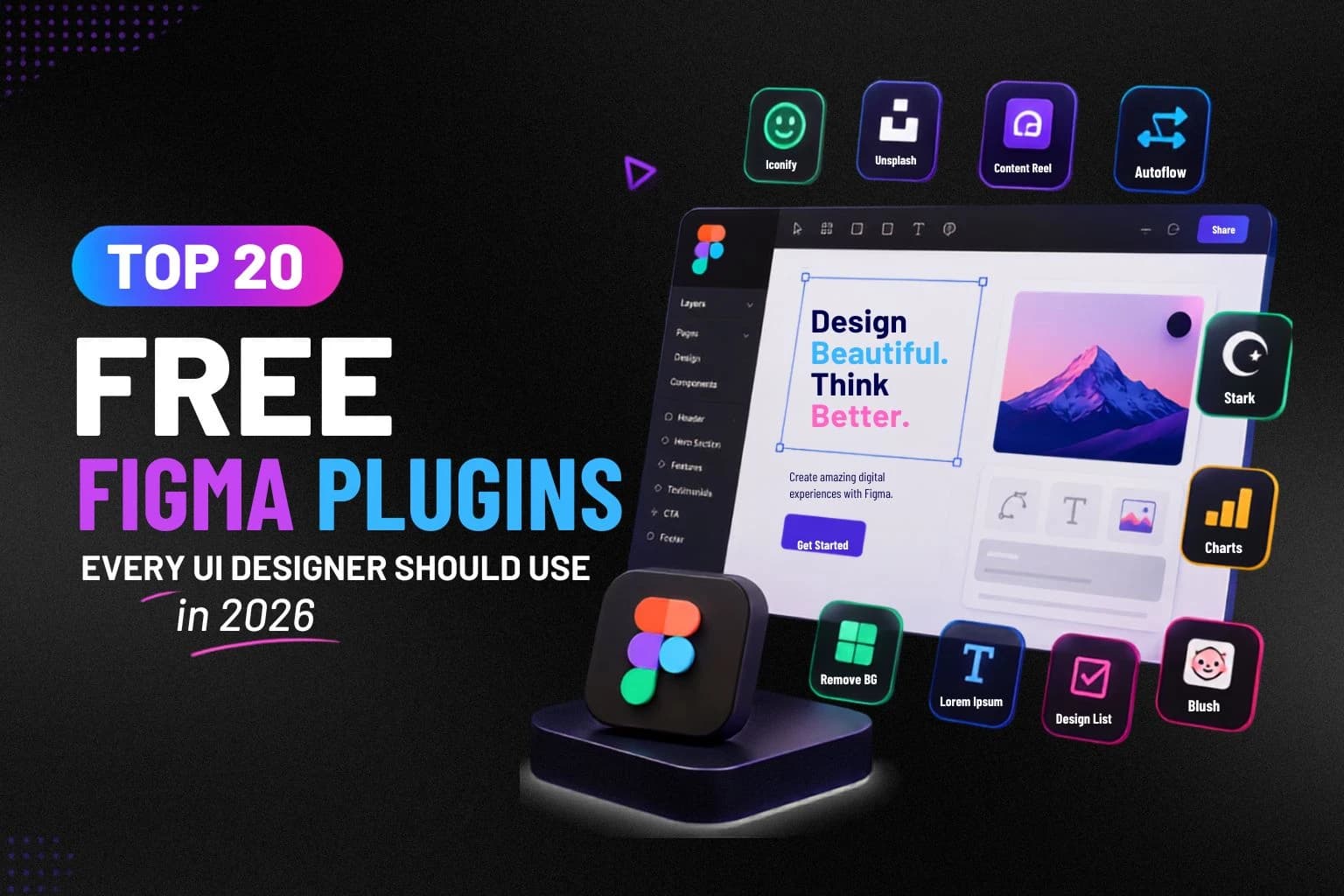
Imagine you're designing a mobile app. You've finished the layout, but now you need icons, illustrations, dummy text, stock images, color palettes, accessibility checks, and responsive previews. Suddenly, what seemed like a two-hour task turns into an entire day of repetitive work.
Every UI designer experiences this at some point.
The good news? You don't have to do everything manually.
Figma plugins are like productivity assistants. They automate repetitive tasks, improve consistency, and let you focus on what really matters—creating exceptional user experiences.
Whether you're just starting your UI/UX journey or you're an experienced designer, the right plugins can dramatically improve your workflow. In this guide, we'll explore 20 of the best free Figma plugins that every designer should consider using in 2026.
Why Figma Plugins Matter
Figma is already one of the world's most popular design tools, but plugins take it to another level.
Instead of switching between multiple websites for icons, images, illustrations, accessibility testing, or content generation, plugins bring everything directly into your design workspace.
Benefits include:
Faster workflow
Better consistency
Less repetitive work
Improved collaboration
Higher design quality
Top 20 Free Figma Plugins
1. Iconify
Access millions of icons from popular libraries without leaving Figma.
Best For: Icons
2. Unsplash
Insert high-quality free photos directly into your design.
Best For: UI mockups
3. Content Reel
Generate realistic names, addresses, emails, avatars, and placeholder content.
Best For: Wireframes
4. Autoflow
Create beautiful user flow arrows between screens instantly.
Perfect for UX presentations.
5. Blush
Add customizable illustrations with just a few clicks.
Excellent for landing pages.
6. Charts
Generate professional-looking charts and graphs.
Ideal for dashboard design.
7. Remove BG
Remove image backgrounds automatically.
No Photoshop required.
8. Lorem Ipsum
Generate placeholder text instantly.
A simple but essential plugin.
9. Stark
Check accessibility, color contrast, and inclusive design standards.
Every professional UI designer should use it.
10. Figmotion
Create animations directly inside Figma.
Perfect for interactive prototypes.
11. Wireframe
Generate ready-made wireframe components quickly.
Great for beginners.
12. Mapsicle
Insert customizable maps into your designs.
Useful for travel and location-based apps.
13. HTML to Design
Convert live web pages into editable Figma files.
Excellent for inspiration and redesign projects.
14. TinyImage Compressor
Compress images without sacrificing quality.
Keeps design files lightweight.
15. Design Lint
Automatically finds inconsistent spacing, colors, fonts, and styles.
Helps maintain design consistency.
16. Similayer
Edit multiple similar layers simultaneously.
Saves significant time.
17. Image Palette
Generate beautiful color palettes from any image.
Perfect for branding projects.
18. Able
Check color accessibility and readability.
Great for creating inclusive interfaces.
19. Mockuuups Studio
Place your designs into realistic device mockups.
Perfect for portfolios and presentations.
20. Typescales
Generate beautiful typography scales automatically.
Ideal for creating consistent design systems.
Which Plugins Should Beginners Install First?
If you're new to Figma, start with these essentials:
Iconify
Unsplash
Content Reel
Lorem Ipsum
Autoflow
Stark
Design Lint
TinyImage Compressor
These plugins cover most day-to-day design tasks and help you build better habits from the beginning.
Common Mistakes Designers Make
Many beginners install dozens of plugins but rarely use them effectively.
Avoid these mistakes:
Installing too many plugins
Ignoring accessibility tools
Using inconsistent icon styles
Forgetting to optimize images
Overcomplicating simple designs
Choose a small set of reliable plugins and master them before adding more to your workflow.
Pro Tips
Keep only the plugins you use regularly to maintain a clean workspace.
Use accessibility plugins like Stark and Able from the start instead of checking accessibility at the end.
Build reusable components and combine them with plugins to save hours on future projects.
Update your plugins regularly to access new features and performance improvements.
Conclusion
The best designers aren't necessarily the ones who work the longest—they're the ones who work the smartest.
Figma plugins eliminate repetitive tasks, improve design quality, and speed up your workflow. Whether you're creating a landing page, mobile app, dashboard, or complete design system, the right plugins can help you produce professional results in less time.
Start with a few essential plugins, build confidence through real projects, and gradually expand your toolkit as your skills grow. Remember, great design isn't about using every plugin available—it's about choosing the right tools to solve the right problems.
Written by
Praxiaskill
Last updated
13 August 2026